Introduction to Clash for Windows
Clash for Windows
In today’s digital landscape, managing network connections efficiently has become increasingly important. Whether you’re looking to bypass geo-restrictions, enhance your online privacy, or optimize your network traffic, having a reliable proxy tool is essential. Clash for Windows has emerged as one of the most powerful and versatile proxy clients available, offering users unprecedented control over their network connections. This comprehensive guide will walk you through everything you need to know about Clash for Windows, from its basic features to advanced configuration options.
What is Clash for Windows?
Clash for Windows is a graphical user interface (GUI) client for the Clash core, which is an open-source network proxy tool based on the rule-based routing system. Originally developed for the Clash core on various platforms, Clash for Windows brings the power of Clash to Windows users with an intuitive and user-friendly interface.
At its core, Clash for Windows acts as a middleman between your computer and the internet, allowing you to route your network traffic through different proxy servers based on predefined rules. This enables users to bypass censorship, access geo-restricted content, and improve network performance by selecting the most optimal routes for different types of traffic
Unlike traditional proxy clients that simply route all traffic through a single server, Clash for Windows employs a sophisticated rule-based system that can intelligently direct different types of traffic through different proxies. This granular control makes it an ideal choice for both casual users and network administrators who need precise control over their network traffic.
Key Features of Clash for Windows
Clash for Windows comes packed with a wide range of features that set it apart from other proxy clients:
Rule-Based Routing System
The standout feature of Clash for Windows is its rule-based routing system. Users can create custom rules to determine which traffic goes through which proxy server. Rules can be based on domain names, IP addresses, process names, and other criteria. This allows for fine-grained control over network traffic.
Multiple Proxy Protocols Support
Clash for Windows supports various proxy protocols including:
- Shadowsocks
- VMess
- Trojan
- SOCKS5
- HTTP
- Snell
- WireGuard
This extensive protocol support ensures compatibility with a wide range of proxy services.
User-Friendly Interface
Despite its powerful features, Clash for Windows maintains an intuitive and clean interface that makes it accessible to users of all technical levels. The main dashboard provides at-a-glance information about connection status, traffic statistics, and active proxies.
System Proxy Mode
Clash for Windows can automatically configure system proxy settings, making it easy to route all or selected applications through the proxy without manual configuration.
Real-Time Traffic Monitoring
The application includes a real-time traffic monitoring feature that displays active connections, data transfer rates, and connection details. This helps users understand how their network traffic is being routed and identify any potential issues.
Automatic Configuration Updates
For users who subscribe to proxy services, Clash for Windows can automatically update configuration files at specified intervals, ensuring that the latest server information is always available.
GeoIP Database Integration
Clash for Windows includes a GeoIP database that allows for location-based routing rules, making it easy to direct traffic based on the geographic location of the destination.
Network Statistics
The application keeps detailed statistics on network usage, including data transferred for each proxy and connection history.
How to Install and Set Up Clash for Windows
Getting started with Clash for Windows is a straightforward process:
Step 1: Download Clash for Windows
To begin, download the latest version of Clash for Windows from the official GitHub repository or other trusted sources. The application is typically distributed as a portable executable file, meaning no installation is required.
Step 2: Launch the Application
Extract the downloaded archive and run the Clash for Windows executable. The application will start in the system tray, with the main interface accessible by clicking on the tray icon.
Step 3: Import Configuration
Clash for Windows requires a configuration file to function. This file contains information about proxy servers, rules, and other settings. There are several ways to import a configuration:
- URL Import: If you have a subscription URL from a proxy service, you can import it directly through the “Profiles” tab.
- File Import: You can import a local configuration file by clicking on “Import” and selecting the file.
- Manual Configuration: For advanced users, you can manually create or edit configuration files using a text editor.
Step 4: Configure System Proxy
Once the configuration is imported, enable the system proxy by clicking on the “System Proxy” toggle in the main interface. This will route your system’s network traffic through Clash for Windows.
Step 5: Select Proxy Mode
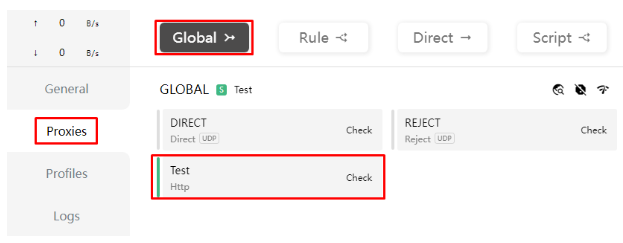
Clash for Windows offers several proxy modes:
- Global: Routes all traffic through a single selected proxy.
- Rule: Routes traffic based on predefined rules (recommended).
- Direct: Bypasses the proxy for all connections.
For most users, the “Rule” mode provides the best balance of performance and functionality
Configuration Guide for Clash for Windows
Understanding how to configure Clash for Windows is crucial for maximizing its potential. Here’s a detailed breakdown of the configuration options:
Proxies Configuration
The proxies section of the configuration file defines all available proxy servers. Each proxy entry includes:
- Name: A descriptive name for the proxy server.
- Type: The proxy protocol (e.g., Shadowsocks, VMess, etc.).
- Server: The server address.
- Port: The server port.
- Authentication credentials: Depending on the proxy type.
Example proxy configuration:
Proxy Groups Configuration
Proxy groups allow you to organize proxies and implement load balancing or failover strategies. Common group types include:
- select: Allows manual selection of a proxy from the group.
- url-test: Automatically selects the proxy with the lowest latency.
- fallback: Uses proxies in order until one is available.
- load-balance: Distributes traffic across multiple proxies.
Example proxy group configuration:
Rules Configuration
Rules are the heart of Clash for Windows, determining how traffic is routed. Rules are processed in order, with the first matching rule determining the proxy used. Common rule types include:
- DOMAIN: Matches domain names.
- DOMAIN-SUFFIX: Matches domain suffixes.
- DOMAIN-KEYWORD: Matches domains containing specific keywords.
- IP-CIDR: Matches IP address ranges.
- GEOIP: Matches based on geographic location.
- PROCESS-NAME: Matches based on the process name.
Example rules configuration:
DNS Configuration
Clash for Windows includes a built-in DNS server that can enhance performance and bypass DNS-based censorship. DNS configuration options include:
- enable: Enable/disable the built-in DNS server.
- listen: The address the DNS server listens on.
- nameserver: DNS servers to use.
- fallback: Fallback DNS servers for specific domains.
- enhanced-mode: DNS enhancement modes (e.g., fake-ip).
Example DNS configuration:
Advanced Features and Tips
Once you’re comfortable with the basics, you can explore these advanced features to enhance your Clash for Windows experience:
Custom Rules Creation
Creating custom rules allows you to optimize your network routing for specific use cases. For example, you might want to route all streaming traffic through high-speed servers while using standard servers for browsing.
Profile Management
Clash for Windows supports multiple configuration profiles, allowing you to switch between different setups easily. This is useful if you have different proxy subscriptions or need different configurations for various networks.
API Integration
Clash for Windows provides a RESTful API that allows external applications to interact with it. This enables automation and integration with other tools.
Scripting Support
Advanced users can leverage scripts to dynamically modify rules and proxy selections based on network conditions or other factors.
Performance Tuning
To optimize performance:
- Use the url-test proxy group type to automatically select the fastest server.
- Enable the built-in DNS server to reduce DNS lookup times.
- Fine-tune rule order to minimize processing time for frequently accessed domains.
Comparison with Other Similar Tools
Clash for Windows stands out in the crowded proxy client market, but how does it compare to other popular options?
Clash for Windows vs. V2RayN
While both are popular proxy clients in the Windows ecosystem, they have different approaches:
- Interface: Clash for Windows offers a more modern and intuitive interface.
- Rule System: Clash for Windows has a more sophisticated rule-based routing system.
- Protocol Support: V2RayN has better support for V2Ray-specific protocols.
- Configuration: Clash for Windows uses YAML configuration files, which are more structured but have a steeper learning curve.
Clash for Windows vs. Shadowsocks Windows
Shadowsocks Windows is a simpler client focused primarily on the Shadowsocks protocol:
- Protocol Support: Clash for Windows supports multiple protocols, while Shadowsocks Windows is limited to Shadowsocks.
- Features: Clash for Windows offers more advanced features like rule-based routing and traffic monitoring.
- Ease of Use: Shadowsocks Windows is simpler for basic Shadowsocks connections.
Clash for Windows vs. SwitchyOmega
SwitchyOmega is a browser extension rather than a system-wide proxy client:
- Scope: Clash for Windows manages system-wide traffic, while SwitchyOmega only affects browser traffic.
- Features: Clash for Windows offers more comprehensive features and protocol support.
- Flexibility: SwitchyOmega is more portable across different systems since it’s browser-based.
Troubleshooting Common Issues
Even with a well-designed tool like Clash for Windows, you may encounter issues. Here are solutions to common problems:
Connection Failures
If you’re experiencing connection failures:
- Verify that your proxy servers are operational.
- Check if your configuration file is correctly formatted.
- Ensure that your firewall isn’t blocking Clash for Windows.
- Try switching to a different proxy server or proxy group.
Slow Performance
For performance issues:
- Use the url-test proxy group to automatically select the fastest server.
- Check if your system proxy settings are correctly configured.
- Verify that the selected proxy server has adequate bandwidth.
- Consider enabling the built-in DNS server to reduce lookup times.
Configuration Errors
If your configuration file isn’t working:
- Validate the YAML syntax using an online validator.
- Check for missing required fields in proxy configurations.
- Ensure that proxy groups reference existing proxies.
- Verify that rules reference valid proxy groups.
DNS Leaks
To prevent DNS leaks:
- Enable the built-in DNS server in Clash for Windows.
- Configure your system to use the Clash for Windows DNS server.
- Test for DNS leaks using online tools.
Security and Privacy Considerations
When using any proxy tool, security and privacy should be top priorities:
Encryption
Ensure that your proxy connections are properly encrypted. Most modern proxy protocols supported by Clash for Windows include encryption options, but they must be correctly configured.
Logging
Clash for Windows minimizes logging to protect user privacy. However, be aware that some proxy servers may log your activity. Choose providers with strict no-logging policies when possible.
Configuration Security
Protect your configuration files as they contain sensitive information such as server addresses and authentication credentials. Avoid sharing them publicly.
Updates
Regularly update Clash for Windows to ensure you have the latest security patches and features. The application typically notifies you when updates are available.
Provider Selection
Choose reputable proxy providers that prioritize security and privacy. Research providers thoroughly before committing to a subscription. bharatinformation.org
Conclusion
Clash for Windows stands as a powerful and versatile proxy client that offers users unprecedented control over their network traffic. Its rule-based routing system, support for multiple proxy protocols, and user-friendly interface make it an excellent choice for both casual users and network administrators.
By following this comprehensive guide, you should now have a solid understanding of how to install, configure, and optimize Clash for Windows for your specific needs. Whether you’re looking to bypass geo-restrictions, enhance your privacy, or optimize network performance, Clash for Windows provides the tools and flexibility to achieve your goals.
As with any powerful tool, the key to getting the most out of Clash for Windows is understanding its features and taking the time to configure it properly. With a well-tuned configuration, you can enjoy a seamless and optimized network experience that adapts to your specific requirements.
Remember to prioritize security and privacy when using any proxy service, and always keep your software updated to ensure you have the latest features and security enhancements. With these considerations in mind, Clash for Windows can serve as your gateway to a more open, secure, and efficient internet experience.