If you have ever tried to save a video from the web, whether it is a tutorial, a social clip, or a streaming show, you already know how frustrating it can be to find a reliable tool. Most online converters are cluttered with ads, limited in quality, or simply fail when you paste the link. That is where desktop software like CleverGet comes into the conversation.
In this article, we are taking a close look at CleverGet as a URL to MP4 converter. We will cover what it is, whether it is safe, what features actually matter, where it falls short, and how it compares to typical online tools. By the end, you will have a clear picture of whether CleverGet is worth your time.
CleverGet Overview
1.1. What Is CleverGet All-in-One?
CleverGet is a desktop application developed by Leawo Software, designed to download and convert videos from a wide range of websites directly to your local storage. It positions itself as an all-in-one video downloader, meaning it handles everything from URL detection to format conversion in a single interface.
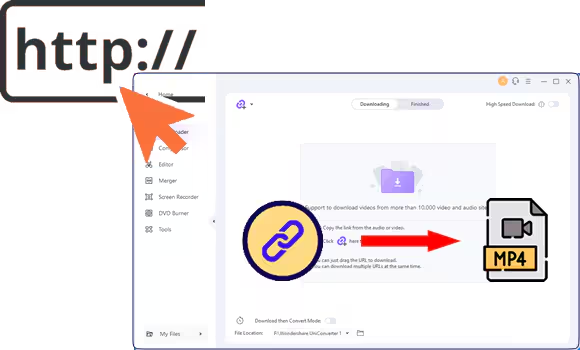
Unlike browser extensions or web-based tools that depend on third-party servers, CleverGet works as a standalone program installed on your Windows or Mac computer. You paste a URL, or browse the built-in browser to the video page, and CleverGet detects and downloads the stream at your chosen quality. The output is saved as an MP4 or MKV file that you can watch offline anytime.
The software supports content from major platforms including YouTube, Vimeo, Facebook, Twitter, Dailymotion, and a growing list of streaming services. It also comes with a separate module for streaming platforms like Netflix and Hulu, which require additional handling due to DRM protection.
1.2. Is CleverGet Safe to Use?
This is one of the most common questions people search before downloading any third-party software, and it is a fair one. CleverGet is developed by Leawo Software, a company that has been in the software industry since 2007. Their products are widely reviewed across technology platforms and have accumulated a broad user base over the years.
From a technical safety standpoint, CleverGet does not contain malware or bundled adware. The installer is clean, and the software does not make suspicious background requests or alter system files beyond its intended function. Many independent tech reviewers have tested the tool and confirmed it operates as advertised.
That said, as with any software download, it is always best practice to download CleverGet directly from the official Leawo website and avoid third-party mirror sites, which may distribute modified versions. Running a quick antivirus scan on any new installation is also a reasonable precaution.
In summary, CleverGet is considered safe to use when downloaded from the official source.
Core Features That Matter for URL to MP4 Conversion
2.1. High-Quality Video Output
One of the biggest frustrations with free online converters is that they compress output aggressively, leaving you with blurry or choppy video. CleverGet addresses this by letting you select the resolution and format before downloading. You can choose from available quality options such as 720p, 1080p, or even 4K where the source supports it.
The output is saved as a standard MP4 file, which is compatible with virtually every media player, device, and editing software. For users who want to archive video content at its original quality, this level of control is a significant advantage.
2.2. Wide Website Compatibility
CleverGet supports over 1,000 websites according to its official documentation. This includes mainstream platforms like YouTube, Facebook, Instagram, Twitter, Vimeo, Twitch, and Dailymotion, as well as regional and niche video sites that most other tools do not support.
For streaming platforms that use DRM (Digital Rights Management), CleverGet offers dedicated modules. For example, you can use it to convert Hulu to MP4 for offline viewing, something that standard online converters simply cannot handle. This broad compatibility makes it a versatile tool for users who pull video from multiple sources.
2.3. Batch Download Capability
If you regularly download multiple videos, doing it one at a time is a major time drain. CleverGet supports batch downloading, meaning you can queue up several URLs at once and let the software process them in the background. This is particularly useful for content creators, researchers, or anyone archiving a playlist or channel.
You simply add multiple links to the download queue and set your preferred quality, and CleverGet handles the rest without requiring you to monitor each individual download.
2.4. Subtitle & Audio Track Retention
For users who download foreign language content or rely on subtitles for accessibility, CleverGet offers subtitle and audio track preservation. When available, the software can download subtitles alongside the video and embed them into the output file, or save them as a separate SRT file depending on your preference.
Multiple audio tracks are also retained where the source supports them, which is useful for dubbed content or videos with commentary tracks.
2.5. Built-in Browser Detection
CleverGet includes a built-in browser that functions much like Chrome or Firefox. When you navigate to a video page through this browser, the software automatically detects the video stream in the background and prompts you to download it. This is particularly helpful for sites that use JavaScript rendering or redirect-heavy URLs, where simply pasting a link might not work.
The detection is usually quick and accurate, reducing the need to manually copy and paste URLs for every video.
Limitations & What Could Be Improved
No tool is perfect, and CleverGet has a few notable drawbacks that are worth considering before you commit.
3.1. No Mobile Version
CleverGet is a desktop-only application. If you primarily use a smartphone or tablet and want to save videos on the go, this tool is not a practical option. There is no iOS or Android version available, which is a significant gap for mobile-first users. For now, CleverGet is best suited to those who work primarily on Windows or Mac computers.
3.2. Requires Installation
Unlike web-based converters that work directly in your browser with no setup, CleverGet requires you to download and install the software on your computer. This is a minor inconvenience for some users, particularly those who prefer not to install additional software or who are using a shared or work computer where they may not have installation permissions.
That said, the installation is straightforward and does not require technical expertise. It is a small tradeoff for the added power and reliability the desktop application provides.
3.3. Free Trial Limitations
CleverGet offers a free trial, but it comes with restrictions. In the trial version, you are limited to a certain number of downloads before being prompted to upgrade to a paid license. The trial is enough to test the software and confirm it works for your needs, but it is not designed for long-term free use.
The paid plans are reasonably priced compared to similar tools, and a one-time purchase option is available for users who prefer to avoid subscription fees. However, users expecting a fully free solution may find the limitations frustrating.
How to Convert URL to MP4 Using CleverGet?
Using CleverGet to convert a video URL to MP4 is a straightforward process. Here is a step-by-step walkthrough:
- Download and install CleverGet from the official Leawo website. Follow the on-screen setup instructions to complete the installation on your Windows or Mac computer.
- Open the application. You will see the main interface, which includes a built-in browser and a download manager panel.
- Paste your video URL. Copy the link to the video you want to download and paste it into the address bar at the top of the built-in browser. Press Enter to navigate to the page.
- Wait for detection. CleverGet will automatically detect the available video streams on the page. A download prompt will appear within a few seconds showing the available quality options.
- Select your preferred quality. Choose the resolution you want, such as 1080p or 720p, and select MP4 as your output format.
- Start the download. Click the download button to begin. The video will be processed and saved to your designated output folder.
- Access your file. Once the download is complete, navigate to the output folder to find your MP4 file, ready to play or transfer to any device.
For streaming platforms that require account login, you will need to log in through the built-in browser before the detection works. CleverGet handles the authentication through the browser session without storing your credentials.
CleverGet vs Typical Online Converters
It is worth comparing CleverGet against the free online URL to MP4 tools that most people reach for first.
Quality and reliability. Online converters frequently max out at 720p and often deliver compressed output even at their highest setting. CleverGet supports up to 4K where available and maintains the original stream quality throughout the conversion process.
Website support. Most online tools work well with YouTube and a handful of other major sites. CleverGet supports over 1,000 sites, including streaming services with DRM protection, which online tools cannot touch.
Ads and distractions. Free online converters typically rely on advertising revenue, which means pop-ups, redirects, and misleading download buttons are common. CleverGet has a clean, ad-free interface once installed.
Speed and batch processing. Online converters are generally limited to one video at a time and can be slow depending on server load. CleverGet processes downloads locally and supports batch queuing for multiple files simultaneously.
Privacy. When you use an online converter, your URL and viewing behavior pass through a third-party server. With CleverGet, everything happens locally on your machine, which is a clear privacy advantage.
Cost. This is where online tools win. Most are free with no download limit (though reduced quality). CleverGet requires a purchase after the trial. Whether the cost is justified depends on how frequently you download videos and how much quality matters to you.
For occasional, casual use, a free online tool may be sufficient. For regular use, high-quality output, or streaming platform content, CleverGet is the more capable and reliable option.
Conclusion
CleverGet is a well-built, reliable tool for anyone who needs to convert video URLs to MP4 regularly. It handles quality far better than most online alternatives, supports an impressive range of websites including DRM-protected streaming platforms, and delivers a clean, focused experience without the ads and clutter typical of free web tools.
Its main drawbacks are the lack of a mobile version, the need for installation, and the fact that the free trial is limited. But for desktop users who value quality, flexibility, and privacy, those are reasonable tradeoffs.
If you are serious about saving video content for offline use, whether it is tutorials, social media clips, or streaming shows, CleverGet is worth the investment. It delivers on its promises in a way that most free alternatives simply cannot match.